
2.2 User Guide
- 2.2 User Guide
- Introduction
- Workspace
- Taskbar
- Applications dock
- Software
- Main programs
- Other programs
- Basic features
- Desktops
- Files and directories
- Keyboard layout
- CD/DVD, USB Flash
- Clipboard
Introduction
Welcome, and thank you for choosing Calculate Linux!
We hope that working in your new system will be fun.
Workspace
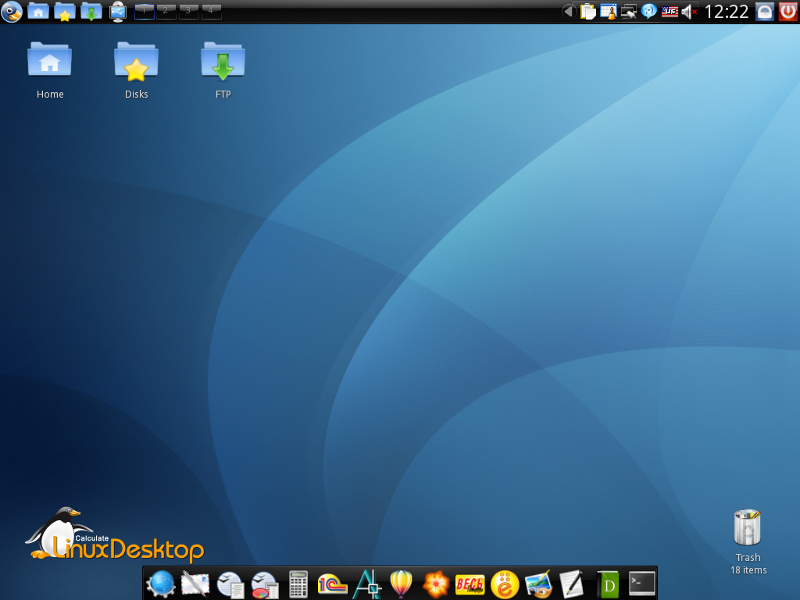
The Calculate Linux Desktop workspace has been configured for your comfort. Each desktop element (panels, icons' order, controls) has its own place, making it easier to work on the computer. We have pre-configured most of the applications to save your time.
Taskbar
The taskbar is positioned at the top of the screen.
Here are the elements found on the panel, from left to right:
- Application menu, the like of the "Start" button in Windows.
- Network disks, which are Home, Disks and FTP.
- Removable devices, to access to CD/DVD devices and Flash drives.
- Desktop switcher, to switch between virtual desktops.
- Taskbar. Displays the applications running on the current desktop.
- Trash basket. Contains the deleted files and directories. Do not forget to clean the basket from time to time.
- System tray. Displays the information on some applications. The clipboard, the organizer, the keyboard switcher, etc., can be always seen there.
- Clock. If you click on it, the Calendar window will be displayed.
- Lock screen and Quit. As you leave the workplace, do not forget to block access to your computer. You can also lock the screen by hitting the Scroll Lock button on your keyboard.
Applications dock
The dock sits at the bottom of your destop.
The dock contains applications you will supposedly need in your everyday work. Programs are sorted out as follows (from left to right): Web applications, office suite, additional applications, text editor, multimedia applications, miscellaneous utilities.
Software
Almost all software in Calculate Linux Desktop is distributed under the free license, which allows you to get access to the programs' source code, modify packages, distribute and even sell them without ever paying to the copyright holders.
Main programs
- Chromium is used for Web surfing.
- KMail comes as the default mail program.
- The word processor and spreadsheets are provided by the LibreOffice office suite ; you can use KWrite for plain text format.
- Programs that have no analogues in Linux can be run on the Windows-server, displaying information on the screen of your computer.
Other programs
To access to any other program, call the Application menu, located on the left of the top panel. The applications are sorted by function, and each is accompanied by an explanation.
Basic features
Desktops
If you are new on Linux, you'll appreciate the concept of multiple desktops. You can perform your tasks on the first one, navigate on the Web on the second, switch to the third for browsing yours mails, etc. Switch between desktops with the mouse (see Desktop switcher) or by hitting Ctrl+[F1-F4].
Files and directories
To access to files on your system, use the Home, Disks and FTP icons on the workspace or on the taskbar. The Home icon opens (yessir!) your home folder, Disks leads to shared network folders, and FTP gives access to FTP servers.
Keyboard layout
Keybord layouts in Calculate Linux are similar to those in Windows. To switch the layout, use Caps Lock. You can see the corresponding country flag in the system tray, and the Scroll Lock LED is on when the default layout is activated. To lock or unlock the upper case, press Shift+Caps Lock.
CD/DVD, USB Flash
To connect the device, first insert the CD/DVD into the drive, or plug the Flash support into the USB port. A window with available devices will appear near the Removables Devices icon; clicking then on your disk (or USB Flash) will open a menu with the suggested actions.
When you have finished with the device, it should be unmounted. Please proceed in the following order: close the data window of the device; click on the Removable devices icon, select your device from the list and click on the umount icon. After that, the device can be removed.
Clipboard
As any other Linux, CL has two clipboards. The first works like its Windows analogue: copying to the clipboard is done by pressing Ctrl+C or Ctrl+Insert; to paste, hit Ctrl+V or Shift+Insert.
The second exchange buffer, which is an X feature, is managed with the mouse only. When you select some text in any application, the text is immediately copied to the clipboard. To paste it, use the third mouse button (that is, the wheel) - just click with it in the place where you want to insert the text.
The contents of the first and the second clipboards are independent. You can access to the clipboard history by clicking on the clipboard icon in the system tray or by hitting Ctrl+Alt+V.